1. ഉൽപ്പന്നം കഴിഞ്ഞുview
The SCULPFUN iCube Ultra 12W is a compact and fully enclosed laser engraving and cutting machine designed for a wide range of materials. It features a 12W diode laser, a 150 x 150 mm working area, and a 0.08 mm laser spot for precise engraving and efficient cutting. The machine prioritizes user safety with its enclosed design, automatic shut-off upon door opening, emergency stop switch, temperature sensors, and a USB security key. An integrated smoke filter system ensures a cleaner working environment.
This device supports multiple operating systems and software, making it accessible for both beginners and experienced users.

Figure 1: SCULPFUN iCube Ultra 12W with features including Class 1 Safety, Laser Auto Focus, Operation Status Indicator, Built-in Smoke Filter System, Large Working Area, and Compact Size.
2 സുരക്ഷാ വിവരങ്ങൾ
Operating a laser engraving machine requires adherence to strict safety protocols to prevent injury and damage. The SCULPFUN iCube Ultra 12W is designed with several safety features:
- Class 1 Safety Certification: The machine meets Class 1 safety standards, indicating a low risk of laser radiation exposure during normal operation.
- പൂർണ്ണമായും അടച്ച രൂപകൽപ്പന: The protective enclosure contains laser emissions and fumes.
- യാന്ത്രിക ഷട്ട്-ഓഫ്: The laser automatically stops if the door is opened during operation.
- എമർജൻസി സ്റ്റോപ്പ് സ്വിച്ച്: A prominent button allows for immediate shutdown in case of an emergency.
- താപനില സെൻസറുകൾ: അമിതമായി ചൂടാകുന്നത് തടയാൻ ആന്തരിക താപനില നിരീക്ഷിക്കുന്നു.
- USB Security Key: മെഷീനിന്റെ അനധികൃത ഉപയോഗം തടയുന്നു.
- Removable Acrylic Eye Protection: Provides additional eye safety, though the enclosed design generally negates the need for separate safety glasses during operation.
- Integrated Smoke Filter: Reduces exposure to harmful fumes and particles.
Always ensure the machine is placed on a stable, non-flammable surface. Do not leave the machine unattended during operation. Keep flammable materials away from the working area.

Figure 2: The SCULPFUN iCube Ultra 12W is certified for Class 1 safety.
3. സജ്ജീകരണ നിർദ്ദേശങ്ങൾ
The SCULPFUN iCube Ultra 12W is designed for quick and easy setup, allowing you to begin your projects shortly after unboxing.
3.1 അൺബോക്സിംഗും പ്ലേസ്മെന്റും
- പാക്കേജിംഗിൽ നിന്ന് എല്ലാ ഘടകങ്ങളും ശ്രദ്ധാപൂർവ്വം നീക്കം ചെയ്യുക.
- Place the machine on a flat, stable, and heat-resistant surface in a well-ventilated area.
- Ensure there is sufficient space around the machine for proper airflow and access.
3.2 Initial Assembly (if required)
The iCube Ultra comes largely pre-assembled. Verify that all internal components are secure and that the laser module is correctly seated. Refer to the quick start guide included in the box for any specific assembly steps.
3.3 പവർ കണക്ഷൻ
- പവർ അഡാപ്റ്റർ മെഷീനുമായി ബന്ധിപ്പിക്കുക.
- അനുയോജ്യമായ ഒരു ഇലക്ട്രിക്കൽ ഔട്ട്ലെറ്റിലേക്ക് പവർ അഡാപ്റ്റർ പ്ലഗ് ചെയ്യുക.
3.4 സോഫ്റ്റ്വെയർ ഇൻസ്റ്റലേഷൻ
The iCube Ultra is compatible with SCULPFUN APP, LightBurn, and LaserGRBL. Choose the software that best suits your needs:
- SCULPFUN APP: Available for Android and iOS. Download from your device's app store for a user-friendly experience, ideal for beginners.
- ലൈറ്റ് ബേൺ: A powerful, paid software compatible with Windows and macOS, offering advanced features for experienced users.
- ലേസർജിആർബിഎൽ: A free, open-source software for Windows, suitable for basic engraving tasks.
Install your chosen software on your computer or mobile device. Follow the on-screen instructions for installation.

Figure 3: The iCube Ultra supports various software including LightBurn and the SCULPFUN App, compatible with Windows, macOS, Android, and iOS.
4. പ്രവർത്തന നിർദ്ദേശങ്ങൾ
This section outlines the basic steps for operating your SCULPFUN iCube Ultra 12W laser engraver.
4.1 മെഷീൻ ബന്ധിപ്പിക്കൽ
The machine can be connected via Bluetooth or USB.
- ബ്ലൂടൂത്ത്: For mobile devices, enable Bluetooth on your phone/tablet and pair with the iCube Ultra via the SCULPFUN APP.
- USB: For computers, connect the machine to your PC/Mac using the provided USB cable. The software (LightBurn/LaserGRBL) should detect the device.
4.2 Preparing Your Material
- Place your material (e.g., wood, paper, leather) flat on the working platform inside the machine.
- Ensure the material is within the 150 x 150 mm working area and does not obstruct the laser path or door closure.
4.3 Auto-Focus Function
The iCube Ultra features an automatic focus function, eliminating the need for manual adjustments.
- In your chosen software, initiate the auto-focus process (often a single-click option).
- The laser module will automatically adjust its height to achieve optimal focus on the material surface.
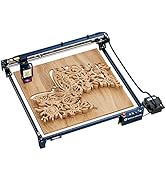
Figure 4: The automatic Z-axis motor performs one-click auto-focus and adjusts for cutting depth.
4.4 ഒരു കൊത്തുപണി/വെട്ടൽ ജോലി ആരംഭിക്കൽ
- നിങ്ങളുടെ ഡിസൈൻ ലോഡ് ചെയ്യുക file സോഫ്റ്റ്വെയറിലേക്ക്.
- Adjust laser power, speed, and passes according to your material and desired outcome. Refer to material testing guides for optimal settings.
- പ്രീview the job to ensure correct placement and scale.
- Close the machine door securely.
- Insert the USB security key (if applicable).
- Initiate the job from the software. Monitor the operation status indicator on the machine.
4.5 അനുയോജ്യമായ വസ്തുക്കൾ
The iCube Ultra 12W can engrave and cut a variety of materials, including:
- Wood, Paper, Fabric, Leather, Cardboard, Bamboo, MDF
- Stone, Ceramic, Jade, Marble, Cement, Brick
- Painted Metal, Plated Metal, Felt, Dark Opaque Acrylic
- Enamelled Metal, Dark Glass, Cork, Stainless Steel

Figure 5: The 12W 455nm diode laser offers high precision for engraving and high speed for cutting across various materials.
5. പരിപാലനം
Regular maintenance ensures optimal performance and extends the lifespan of your SCULPFUN iCube Ultra 12W.
5.1 മെഷീൻ വൃത്തിയാക്കൽ
- പുറം: ഒരു മൃദുവായ, ഡി ഉപയോഗിച്ച് ബാഹ്യ പ്രതലങ്ങൾ തുടയ്ക്കുകamp തുണി. ഉരച്ചിലുകൾ ഉള്ള ക്ലീനറുകൾ ഒഴിവാക്കുക.
- ഇൻ്റീരിയർ: Periodically clean the interior of the working area to remove dust and debris. Use a soft brush or compressed air.
5.2 Laser Lens Cleaning
A dirty laser lens can reduce laser power and engraving quality. Clean the lens gently with a specialized lens cleaning solution and a lint-free cloth or cotton swab. Refer to the detailed cleaning instructions in the full manual.
5.3 Smoke Filter Replacement
The built-in smoke filter system requires periodic replacement of its filter elements to maintain effective fume extraction.
- The filter system consists of a smoke dust filter and an activated carbon smell filter.
- The frequency of replacement depends on usage and the types of materials processed. Monitor the filter's condition and replace when efficiency decreases or odors become noticeable.
- To replace, open the filter compartment, remove the old filters, and insert new ones in the correct orientation.

ചിത്രം 6: വിശദമായി view of the iCube Ultra's high-efficiency smoke filter system.
5.4 Lubrication of Guide Rails
The sleeve guide rails ensure smooth and precise movement. Periodically apply a small amount of appropriate lubricant to the guide rails to maintain optimal performance and prevent wear.

Figure 7: The precision sleeve guide rail design contributes to rapid engraving speeds of up to 10000mm/min.
6. പ്രശ്നപരിഹാരം
നിങ്ങൾ നേരിട്ടേക്കാവുന്ന പൊതുവായ പ്രശ്നങ്ങളെ ഈ വിഭാഗം അഭിസംബോധന ചെയ്യുകയും സാധ്യമായ പരിഹാരങ്ങൾ നൽകുകയും ചെയ്യുന്നു.
6.1 മെഷീൻ ഓണാക്കുന്നില്ല
- പവർ കണക്ഷൻ പരിശോധിക്കുക: Ensure the power adapter is securely connected to both the machine and the electrical outlet.
- ഔട്ട്ലെറ്റ് പരിശോധിക്കുക: Test the outlet with another device to confirm it is functional.
- അടിയന്തരമായി നിർത്തുക: Ensure the emergency stop button is not pressed in.
6.2 Laser Not Firing or Weak Output
- Door Closed: Confirm the machine door is fully closed. The safety interlock prevents laser operation if open.
- USB Security Key: Ensure the USB security key is inserted.
- സോഫ്റ്റ്വെയർ ക്രമീകരണങ്ങൾ: Check laser power settings in your software. Ensure they are not set too low.
- ലേസർ ലെൻസ്: Clean the laser lens as described in the Maintenance section. A dirty lens can significantly reduce output.
- ഫോക്കസ്: Perform auto-focus to ensure the laser is correctly focused on the material.
6.3 മോശം കൊത്തുപണി/മുറിക്കൽ നിലവാരം
- ഫോക്കസ്: Re-run the auto-focus function.
- മെറ്റീരിയൽ ക്രമീകരണങ്ങൾ: Adjust laser power, speed, and number of passes in your software. Different materials require different settings.
- Material Stability: Ensure the material is flat and securely placed, preventing movement during operation.
- ലെൻസ് ശുചിത്വം: ലേസർ ലെൻസ് വൃത്തിയാക്കുക.
6.4 Connection Issues (Bluetooth/USB)
- പുനരാരംഭിക്കുക: Restart both the machine and your computer/mobile device.
- യൂഎസ്ബി കേബിൾ: മറ്റൊരു USB കേബിളോ പോർട്ടോ പരീക്ഷിക്കുക.
- ബ്ലൂടൂത്ത് ജോടിയാക്കൽ: For Bluetooth, unpair and re-pair the device. Ensure Bluetooth is enabled on your mobile device.
- സോഫ്റ്റ്വെയർ തിരിച്ചറിയൽ: Ensure your software is updated and correctly configured to detect the iCube Ultra.
7 സ്പെസിഫിക്കേഷനുകൾ
| ഫീച്ചർ | സ്പെസിഫിക്കേഷൻ |
|---|---|
| മോഡൽ | iCube Ultra Single Laser |
| ലേസർ പവർ | 12W Diode Laser |
| ലേസർ തരംഗദൈർഘ്യം | 455 എൻഎം |
| വർക്കിംഗ് ഏരിയ | 150 x 150 മി.മീ |
| ലേസർ സ്പോട്ട് വലിപ്പം | 0.08 മി.മീ |
| Movement Precision | 0.1 മി.മീ |
| Max Working Speed | 10,000 മിമി/മിനിറ്റ് |
| ഫോക്കസ് രീതി | യാന്ത്രിക ഫോക്കസ് |
| അനുയോജ്യമായ സിസ്റ്റങ്ങൾ | വിൻഡോസ് / മാകോസ് / ആൻഡ്രോയിഡ് / ഐഒഎസ് |
| അനുയോജ്യമായ സോഫ്റ്റ്വെയർ | SCULPFUN APP / LightBurn / LaserGRBL |
| കണക്ഷൻ രീതി | ബ്ലൂടൂത്ത് / USB |
| മെഷീൻ വലിപ്പം | 335 x 357 x 289 മിമി |
| മെഷീൻ ഭാരം | 5.95 കി.ഗ്രാം |
| സുരക്ഷാ സർട്ടിഫിക്കേഷൻ | Class 1 Safety |
| ഉൾപ്പെടുത്തിയ ഘടകങ്ങൾ | SCULPFUN iCube Ultra Mini Laser Engraving Machine |
8. വാറൻ്റിയും പിന്തുണയും
For warranty information and technical support, please refer to the documentation included with your product or visit the official SCULPFUN website. Information regarding the availability of spare parts is not provided in this manual. For any service or parts inquiries, please contact SCULPFUN customer support directly.


