1. ആമുഖം
The OTTOCAST P3 Pro AI Box is a device designed to enhance your in-car entertainment and connectivity experience. It provides wireless CarPlay and Android Auto functionality, runs on Android 13 with OttoDrive 3.0, and offers features such as HDMI output, Cloud SIM connectivity, and access to various streaming applications. This manual provides instructions for setup, operation, and maintenance of your P3 Pro device.

Image: The OTTOCAST P3 Pro AI Box interface displayed on a car's infotainment screen, showcasing app icons and a driver interacting with the system.
2 സുരക്ഷാ വിവരങ്ങൾ
Please read and follow these safety guidelines to ensure proper use and prevent damage to the device or vehicle:
- ഡ്രൈവിംഗിൽ നിന്ന് നിങ്ങളെ വ്യതിചലിപ്പിക്കുന്ന രീതിയിൽ ഉപകരണം പ്രവർത്തിപ്പിക്കരുത്.
- Ensure the device is securely placed and does not obstruct your view അല്ലെങ്കിൽ വാഹന നിയന്ത്രണങ്ങൾ.
- Avoid watching videos or engaging in activities that require significant visual attention while the vehicle is in motion.
- ഉപകരണത്തെ തീവ്രമായ താപനില, നേരിട്ടുള്ള സൂര്യപ്രകാശം, ഈർപ്പം എന്നിവയിൽ നിന്ന് അകറ്റി നിർത്തുക.
- Do not attempt to disassemble or modify the device. Refer to qualified personnel for service.
3. പാക്കേജ് ഉള്ളടക്കം
പാക്കേജിൽ എല്ലാ ഇനങ്ങളും ഉണ്ടെന്ന് ഉറപ്പാക്കുക:
- 1 x OttoAibox P3 Pro
- 1 x USB-A മുതൽ USB-C കേബിൾ വരെ
- 1 x USB-A മുതൽ USB-C അഡാപ്റ്റർ വരെ
- 1 x Y-Cable (for low power situations)
- 1 x ഉപയോക്തൃ മാനുവൽ

Image: The complete package contents of the OTTOCAST P3 Pro, showing the device, cables, and manual.
4. ഉൽപ്പന്നം കഴിഞ്ഞുview
The OTTOCAST P3 Pro AI Box is a compact device designed for seamless integration with your car's infotainment system. It features multiple ports for connectivity and a protocol switch button for different modes.
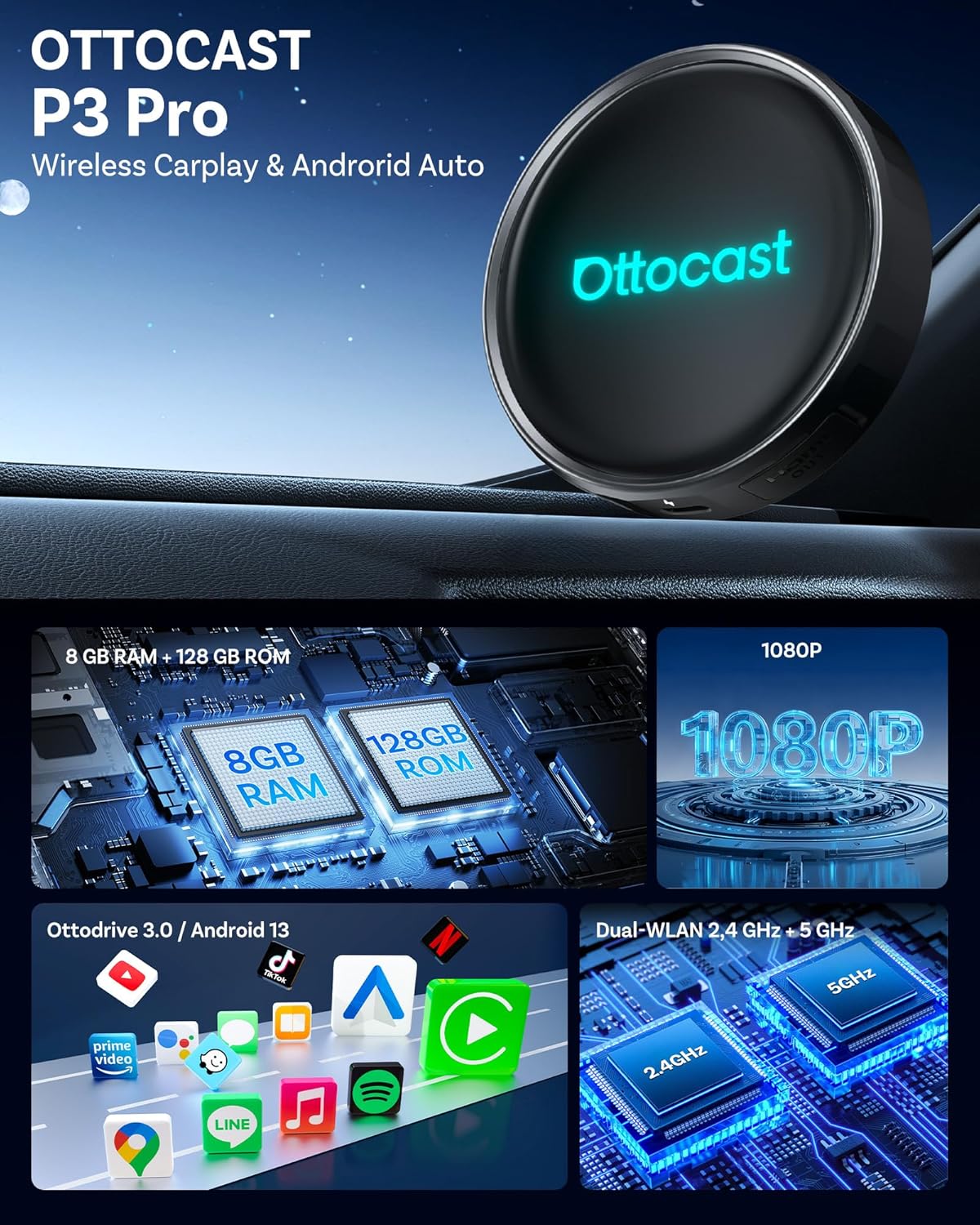
ചിത്രം: ഒരു ക്ലോസ്-അപ്പ് view of the OTTOCAST P3 Pro AI Box, showcasing അതിന്റെ മിനുസമാർന്ന ഡിസൈൻ.
പ്രധാന സവിശേഷതകൾ:
- വയർലെസ് കാർപ്ലേയും ആൻഡ്രോയിഡ് ഓട്ടോയും: Connect your smartphone wirelessly.
- Android 13 with OttoDrive 3.0: Latest Android OS for smooth performance.
- 8 ജിബി റാം + 128 ജിബി റോം: Ample memory and storage for apps and media.
- HDMI ഔട്ട്പുട്ട്: ബാഹ്യ ഡിസ്പ്ലേകളിലേക്ക് കണക്റ്റുചെയ്യുക.
- Cloud SIM Connectivity: Stay online without a physical SIM card or phone hotspot.
- AI വോയ്സ് അസിസ്റ്റന്റ്: Hands-free control for navigation, music, and calls.
- സ്പ്ലിറ്റ് സ്ക്രീൻ പ്രവർത്തനം: ഒന്നിലധികം ആപ്ലിക്കേഷനുകൾ ഒരേസമയം പ്രവർത്തിപ്പിക്കുക.

Image: An illustration detailing the internal specifications and capabilities of the P3 Pro, such as memory, resolution, and connectivity.
5. സജ്ജീകരണ നിർദ്ദേശങ്ങൾ
5.1 പ്രാരംഭ കണക്ഷൻ
- നിങ്ങളുടെ കാറിൽ ഫാക്ടറി വയർഡ് കാർപ്ലേ അല്ലെങ്കിൽ ആൻഡ്രോയിഡ് ഓട്ടോ ഉണ്ടെന്ന് ഉറപ്പാക്കുക.
- Plug the OTTOCAST P3 Pro into your car's USB port using the provided USB-A to USB-C cable or USB-A to USB-C adapter. For low power situations, use the Y-Cable.
- Wait for the main screen to appear on your car's display, indicating the device has launched.

Image: A step-by-step guide illustrating the physical connection and initial setup of the P3 Pro.
5.2 Bluetooth & Wi-Fi Pairing
- On your car's screen, open the "Multiplay App" icon.
- നിങ്ങളുടെ സ്മാർട്ട്ഫോണിൽ, ബ്ലൂടൂത്തും വൈ-ഫൈയും പ്രവർത്തനക്ഷമമാക്കിയിട്ടുണ്ടെന്ന് ഉറപ്പാക്കുക.
- ഇതിനായി തിരയുക "OttoAibox-P3 Pro" in your phone's Bluetooth list and tap to pair.
- Confirm the pairing request on your phone.
- After 5-15 seconds, the screen will automatically switch to the Apple CarPlay/Android Auto interface.
5.3 Cloud SIM Setup
The Cloud SIM feature allows the device to stay connected without a physical SIM card or phone hotspot.
- Turn on your device and enter the OttoDrive home screen.
- Open the "SIMate App" and follow the on-screen instructions.
- Scan the QR code on the screen to claim free Cloud SIM data or choose a data plan.
- The device will connect automatically. Once online, you can use all apps and online services.

Image: Visual representation of the Cloud SIM functionality and the SIMate app interface.
5.4 HDMI Output Setup
The P3 Pro supports HDMI output for connecting to external displays, such as rear-seat monitors.
- Connect the OTTOCAST P3 Pro to your car's USB port to complete initial setup.
- Use a mini-HDMI to HDMI cable (not included) to link the P3 Pro to a rear-seat or external screen.
- Select the correct HDMI input on the external display.
- The external screen will automatically show videos, navigation, or run apps while the car's main screen remains active.
Note: Complete initial setup in a wired CarPlay car first for best performance.
Video: This video demonstrates the setup process of the OTTOCAST P3 Pro, including connecting the device, navigating the interface, and showcasing various features like customizable UI, voice control, and dual-screen output. It also highlights the HDMI output capability.
6. ഓപ്പറേഷൻ
6.1 Customizable UI & Widgets
The OttoDrive 3.0 interface allows for personalization of your car screen.
- Customize widgets, apps, icons, and wallpapers to suit your preferences.
- Access the Desktop Widget Center to add or remove widgets like BT Telephone, SIMate, Music, and Navigation.
6.2 സ്പ്ലിറ്റ് സ്ക്രീൻ പ്രവർത്തനം
Multitask effectively by viewing navigation and entertainment simultaneously.
- Choose from various layout options (e.g., 3:7, 5:5, or 7:3) for optimal viewing.
- Select applications for each side of the split screen from the app list.
6.3 ശബ്ദ നിയന്ത്രണം
Utilize the built-in AI voice assistant for hands-free operation.
- Issue commands for navigation, music playback, making calls, and sending messages.
- The voice assistant is always ready to help with tasks like finding nearby points of interest.
6.4 App Installation & Streaming
Access a wide range of applications for entertainment and utility.
- Stream content from platforms like Netflix, YouTube, and Prime Video.
- Download any app via Google Play using Wi-Fi or Cloud SIM connectivity.

Image: In-car entertainment setup showing streaming services on both the main display and rear-seat screens.
6.5 Quick Switch between CarPlay/Android Auto
Easily switch between CarPlay and Android Auto modes.
- For CarPlay: If your car supports wired CarPlay, the default mode is CarPlay.
- ആൻഡ്രോയിഡ് ഓട്ടോയ്ക്ക്: If your car supports wired Android Auto, switch to the AA button.
- If your car supports both wired CarPlay and Android Auto, no manual switch is needed.

Image: Instructions for using the CP/AA mode switch on the device.
6.6 AI Control App
Manage your OTTOCAST P3 Pro using the AI Control app for real-time operation, even on non-touchscreen car systems.
- രീതി 1: Scan the QR code in the manual or on the product packaging.
- രീതി 2: Search and download the "AI Control" app from Google Play.

Image: Guide on how to obtain and use the AI Control app for remote device management.
7. പരിപാലനം
7.1 System Updates (FOTA)
Keep your device up-to-date with the latest Android 13 features and improvements.
- System updates can be installed online (FOTA - Firmware Over-The-Air) or via an SD card.
- Access the System Update section in the device settings to check for and install new versions.
7.2 റീസെറ്റ് ഓപ്ഷനുകൾ
If you encounter issues or wish to restore factory settings, you can reset the device.
- Method 1: Reset via Settings (Device On)
Power on the OTTOCAST P3 Pro → Go to Settings → Select Factory Reset → Confirm. - Method 2: Manual Reset (Device Off)
Keep the device powered off → Connect the power cable → Press and hold the Reset button (located on the device) for 10 seconds.

Image: Detailed steps for performing a soft reset via settings or a hard reset using the physical button.
8. പ്രശ്നപരിഹാരം
This section addresses common issues you might encounter with your OTTOCAST P3 Pro.
- ഉപകരണം ഓണാക്കുന്നില്ല: Ensure the USB cable is securely connected to both the device and a functional USB port in your car. Try a different USB port or cable.
- No CarPlay/Android Auto connection: Verify that your car supports factory-wired CarPlay/Android Auto. Check your phone's Bluetooth and Wi-Fi settings and ensure it's paired with the device. Restart both the device and your phone.
- മന്ദഗതിയിലുള്ള പ്രകടനം അല്ലെങ്കിൽ മരവിപ്പിക്കൽ: Close unnecessary background applications. Ensure the device has sufficient ventilation. Consider performing a system reset if the issue persists.
- ശബ്ദമില്ല: Check the volume levels on both the device and your car's audio system. Ensure the correct audio input is selected on your car's head unit.
- HDMI output not working: Confirm the mini-HDMI to HDMI cable is correctly connected and the external display is set to the correct HDMI input. Ensure the P3 Pro has completed its initial setup via the car's main screen.
- Cloud SIM connectivity issues: Check the SIMate app for data plan status. Ensure you are in an area with network coverage.
9 സ്പെസിഫിക്കേഷനുകൾ
| ഫീച്ചർ | വിശദാംശങ്ങൾ |
|---|---|
| മോഡൽ നമ്പർ | P3 Pro |
| ഓപ്പറേറ്റിംഗ് സിസ്റ്റം | Android 13 with OttoDrive 3.0 |
| പ്രോസസ്സർ | Qualcomm Snapdragon SM6225 |
| റാം | 8 ജിബി |
| ആന്തരിക സംഭരണം (ROM) | 128 ജിബി |
| സംഭരണ വിപുലീകരണം | Micro SD (Up to 512GB) |
| കണക്റ്റിവിറ്റി | Dual-Band Wi-Fi 6 (2.4GHz & 5GHz), Bluetooth 5.1, Cloud SIM |
| ഔട്ട്പുട്ട് പോർട്ടുകൾ | എച്ച്ഡിഎംഐ, മൈക്രോ യുഎസ്ബി |
| അളവുകൾ | 3.35 x 0.79 x 3.35 ഇഞ്ച് |
| ഇനത്തിൻ്റെ ഭാരം | 4.2 ഔൺസ് |
| അനുയോജ്യമായ ഉപകരണങ്ങൾ | Smartphones (iPhone 5+ / iOS 10+, Android 11+), Televisions |
| വാഹന അനുയോജ്യത | Works with 98% of vehicles equipped with wired CarPlay & Android Auto. Check compatibility here. |

Image: A comparison chart detailing the technical specifications of the P3 Pro against a previous model, the E2.
10. വാറൻ്റിയും പിന്തുണയും
OTTOCAST provides comprehensive support for its products.
- വാറൻ്റി: The product includes 2 years of after-sales service.
- ഉപഭോക്തൃ പിന്തുണ: Contact OTTOCAST customer support for assistance with any issues.
- സാങ്കേതിക മാർഗ്ഗനിർദ്ദേശം: Professional technical guidance is available to help with setup and troubleshooting.
For further assistance, please refer to the official OTTOCAST webസൈറ്റ് അല്ലെങ്കിൽ അവരുടെ ഉപഭോക്തൃ സേവനവുമായി നേരിട്ട് ബന്ധപ്പെടുക.


